 BTGuard
BTGuard VPN for MacOS
Setup Instructions
- 1. Download and open the BTGuard VPN app on your mac.
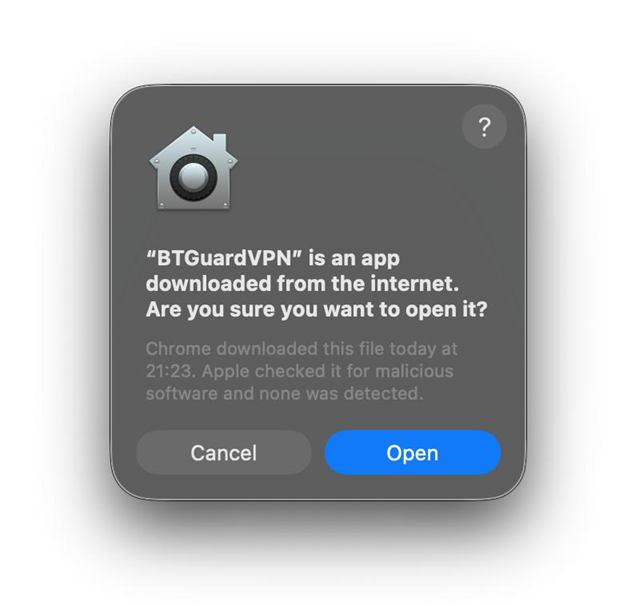
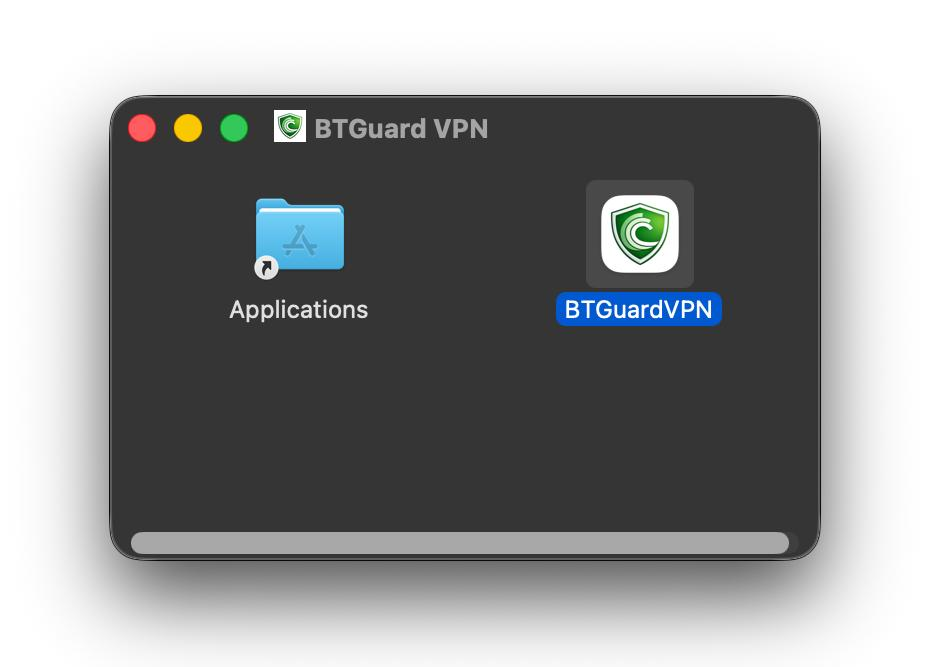
- 2. Click on Open then drag and drop the BTGuardVPN app into the Applications folder.
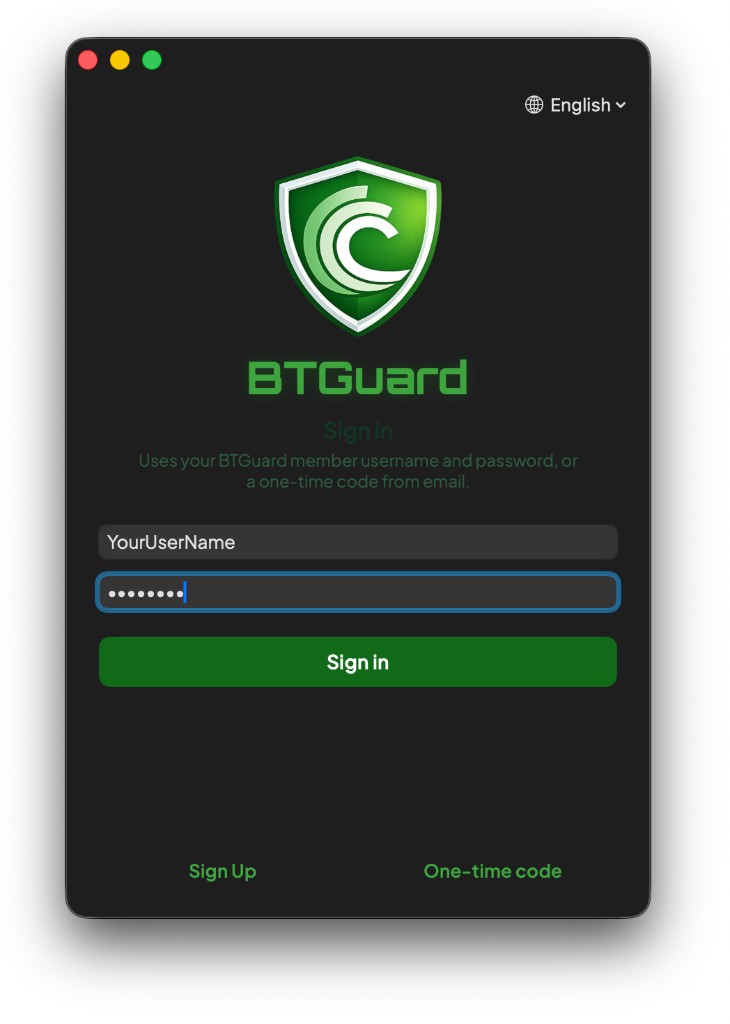
- 3. Open BTGuard VPN.
- 4. Fill in your Username and Password.
Both username and password are case sensitive. Make sure not to add/forget Capital Letters. - 5. Hit Sign in.
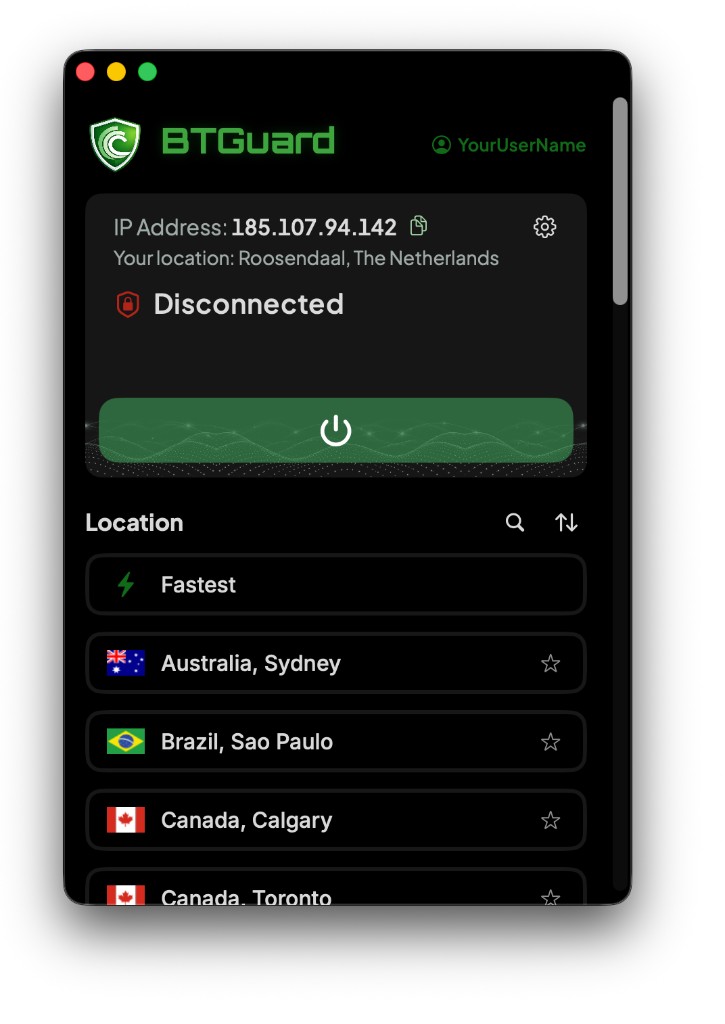
- 6. Hit Connect.
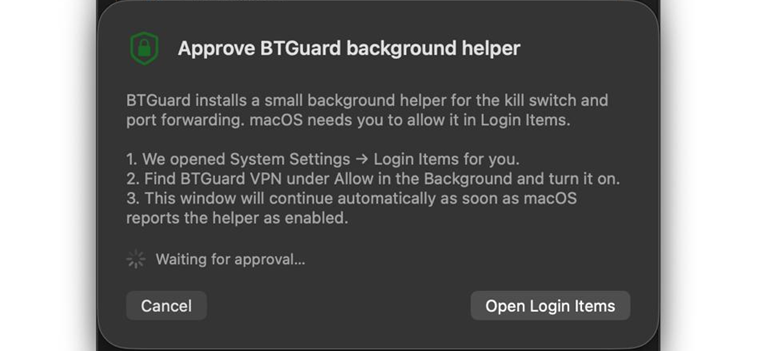
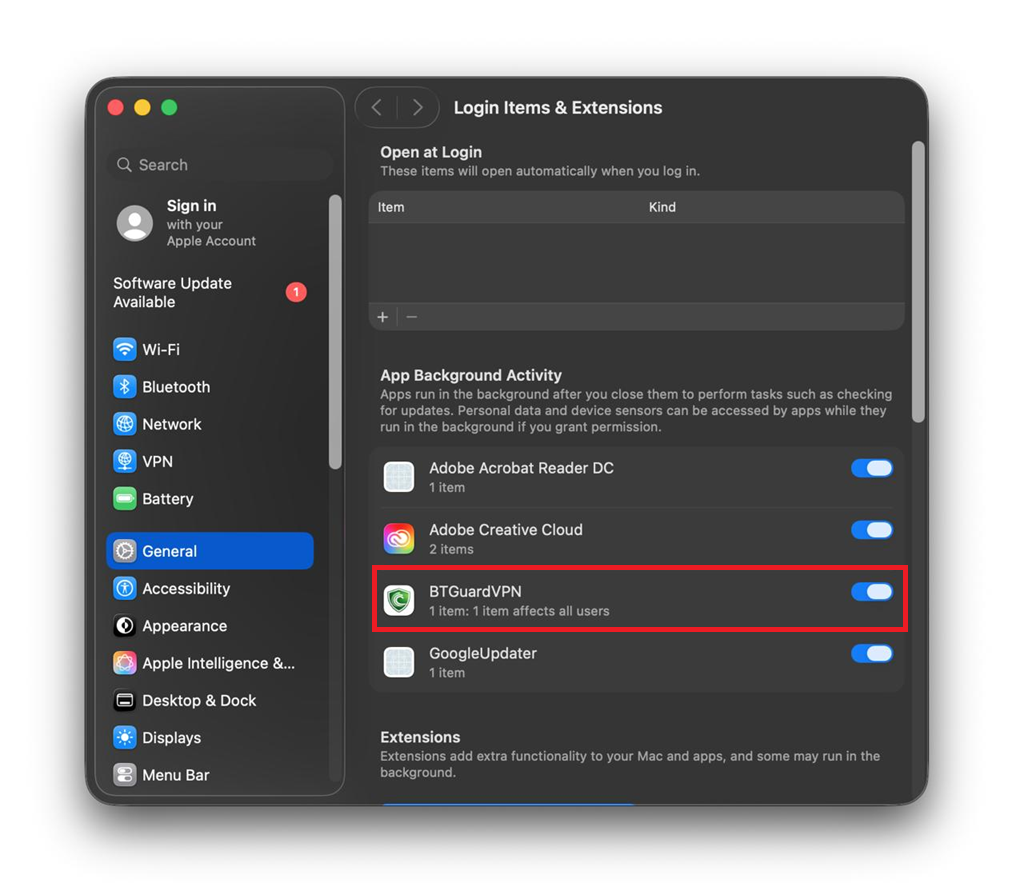
- 7. On your first time connecting, you will need to allow BTGuardVPN to run in the background. In the new Login Items & Extensions window, locate BTGuardVPN and activate it.
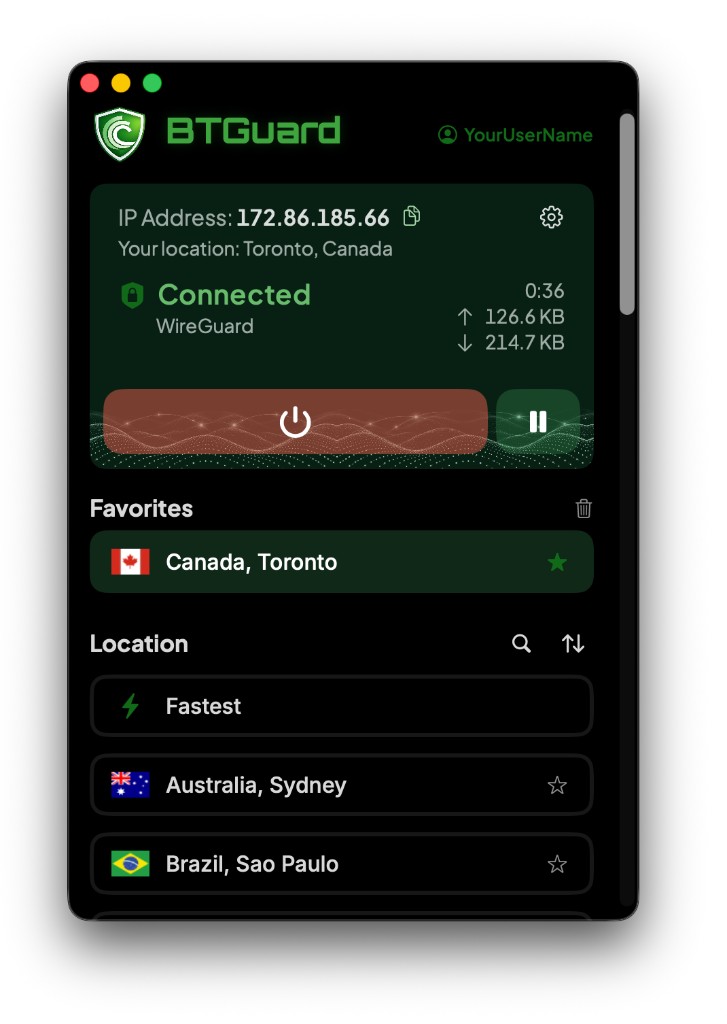
- You are now connected!
Settings
- 1. Click on your username to Manage your account, Change language and Log out
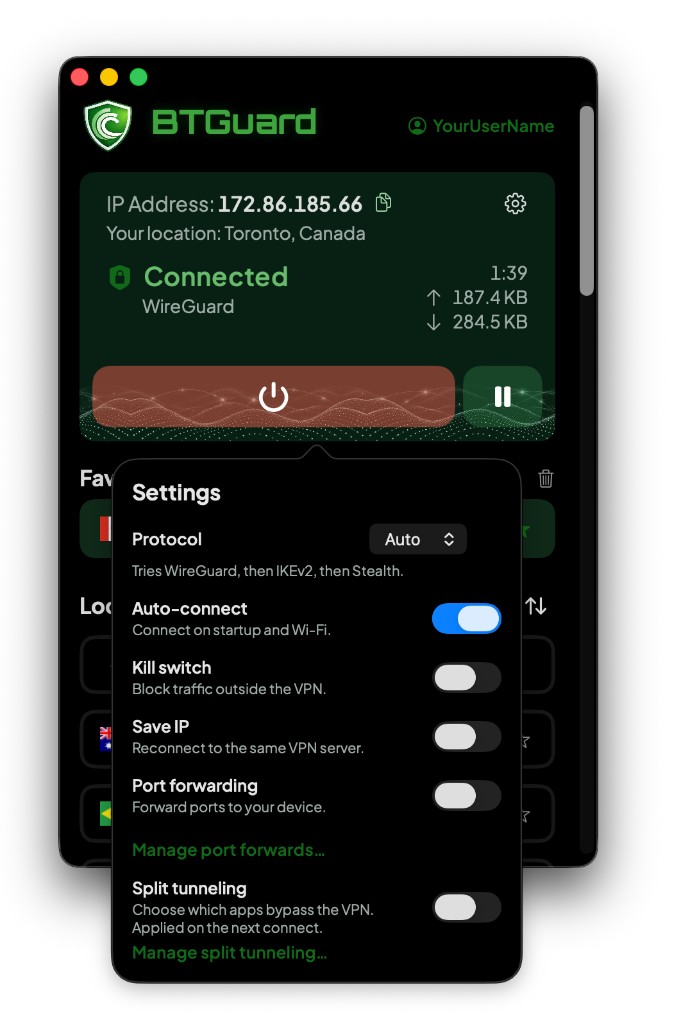
- 2. Click on the gear box and here you will be able to adjust some settings for your VPN
- Auto-connect: When enabled it will automatically connect to your last used location when you open the app or if you switch wifi network.
- Kill switch: If for some reason the VPN connection is lost, all internet traffic would be blocked while it reconnects.
- Save IP: If you'd like to keep using the same IP for any reason, enable this option.
-IKEv2 Enabled: If for any reason you'd like to use IKEv2 instead of WireGuard
- Port forwarding: Forward ports through our VPN to your device. (If you don't know what port forwarding is, leave it disabled.) - 3. Click on the up and down arrow to change how all the locations are sorted, either by closest to your current location according to the IP you connect from or Alphabetically.
Show split tunneling & port forwarding
Split tunneling
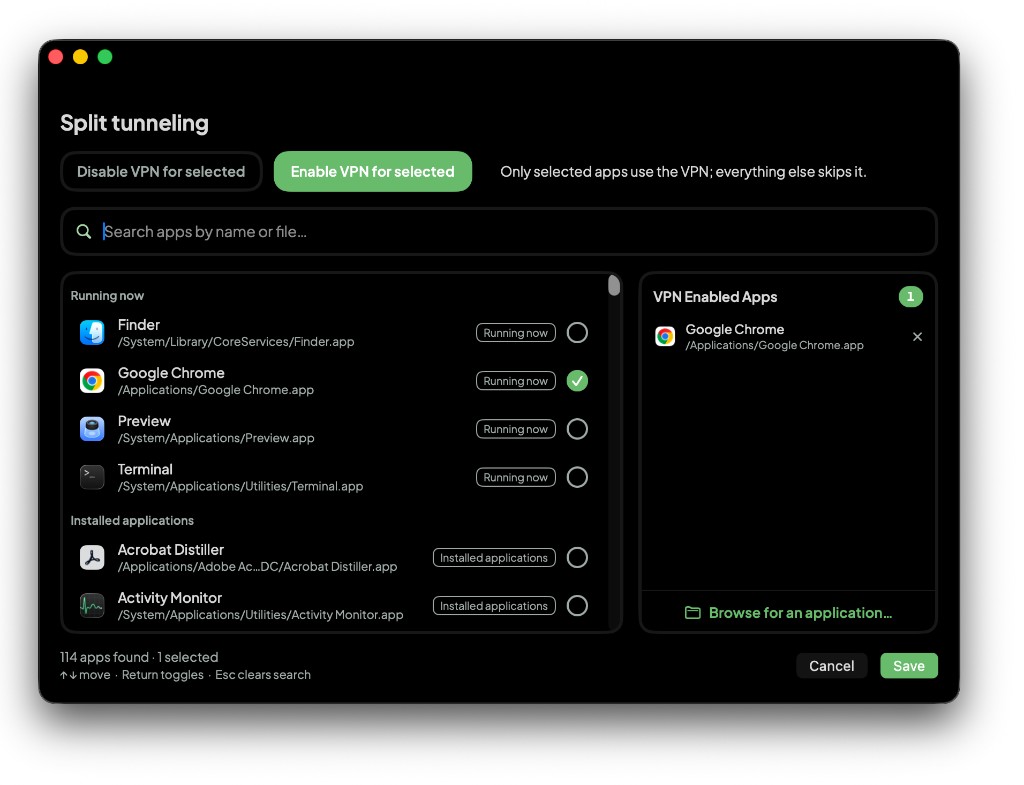
- 1. Click on the gear box, turn on Split tunneling, then click Manage split tunneling…
- 2. Choose a mode:
- Disable VPN for selected: Selected apps skip the VPN; everything else uses it.
- Enable VPN for selected: Only selected apps use the VPN; everything else skips it. - 3. Click the circle next to each app you want. Use the search bar to find an app, or Browse for an application… if it isn't listed. Click the x on the right to remove an app.
- 4. Click Save. Changes apply the next time you connect.
Port forwarding
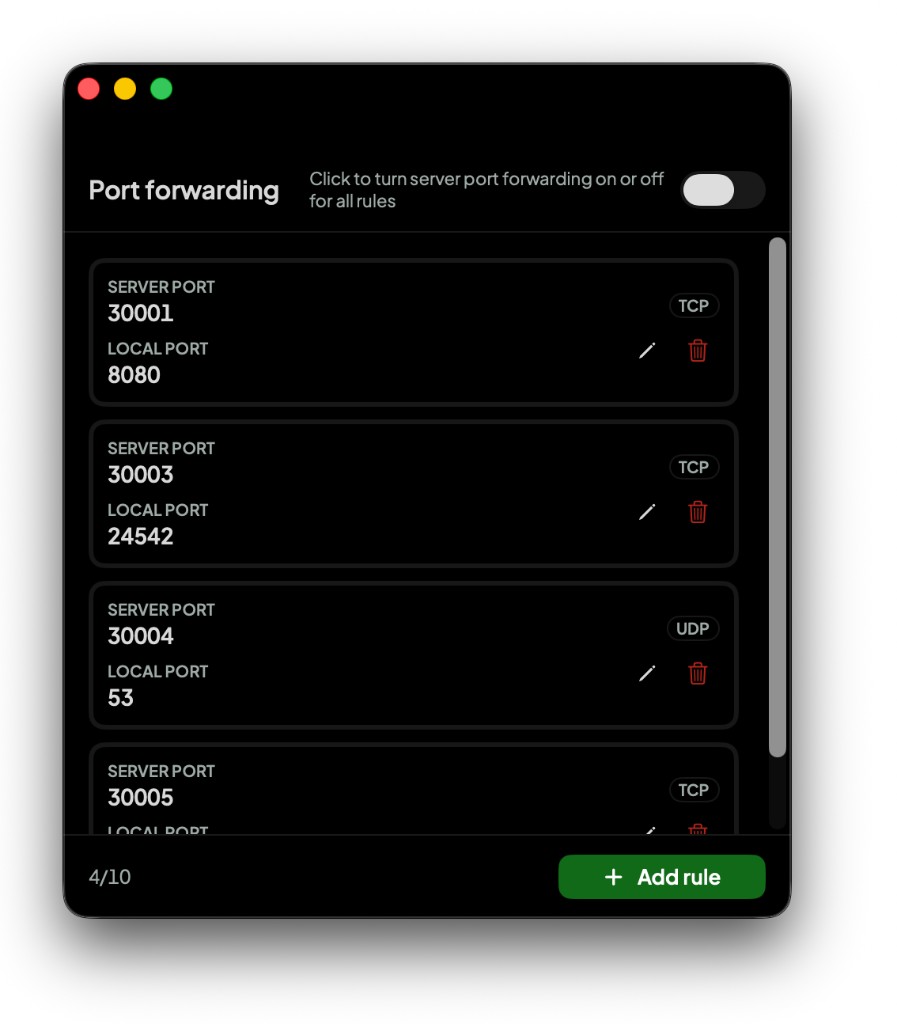
- 1. Click on the gear box, turn on Port forwarding, then click Manage port forwards…
- 2. Click Add rule, enter the Local port your app listens on, choose TCP or UDP and click OK.
- 3. A Server port is assigned automatically. Connections to that port on the VPN IP are forwarded to your local port.
- 4. Click the pencil to edit a rule or the trash can to delete it. The switch at the top turns all rules on or off. You can add up to 10 rules.
If you're using qBittorrent, change these settings.