 BTGuard
BiglyBT / Vuze
Setup Instructions
- 1. Download and Install BiglyBT
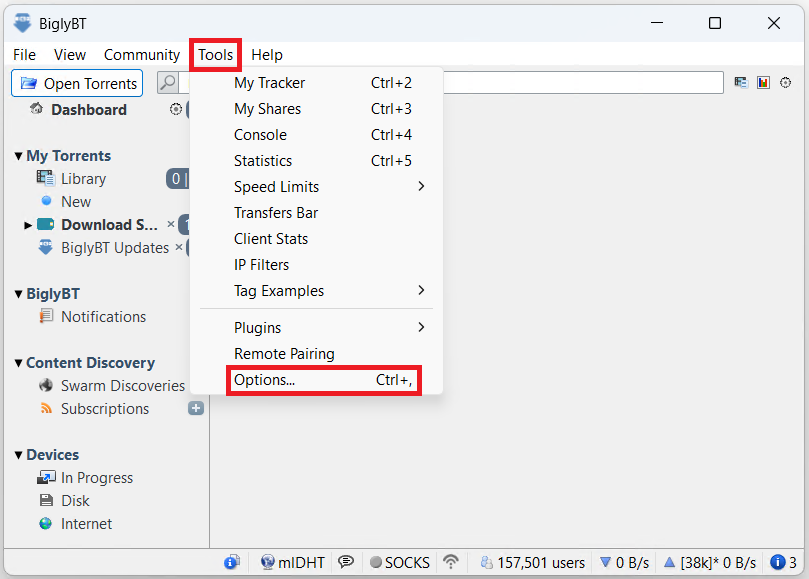
- 2. Select Tools then Options or hit CTRL + ,
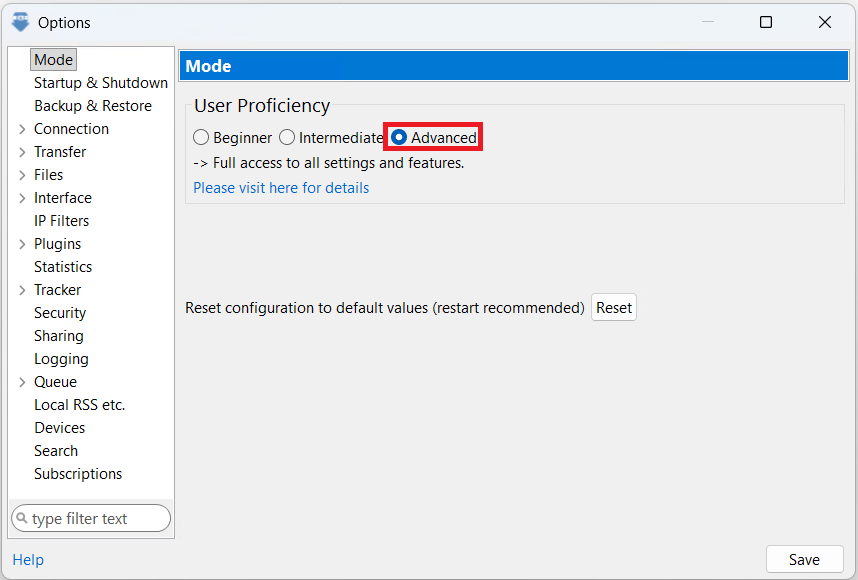
- 2. Select Advanced
- 3. On the left, click on Tracker then on Client.
- 4. Click on the > sign next to Connection
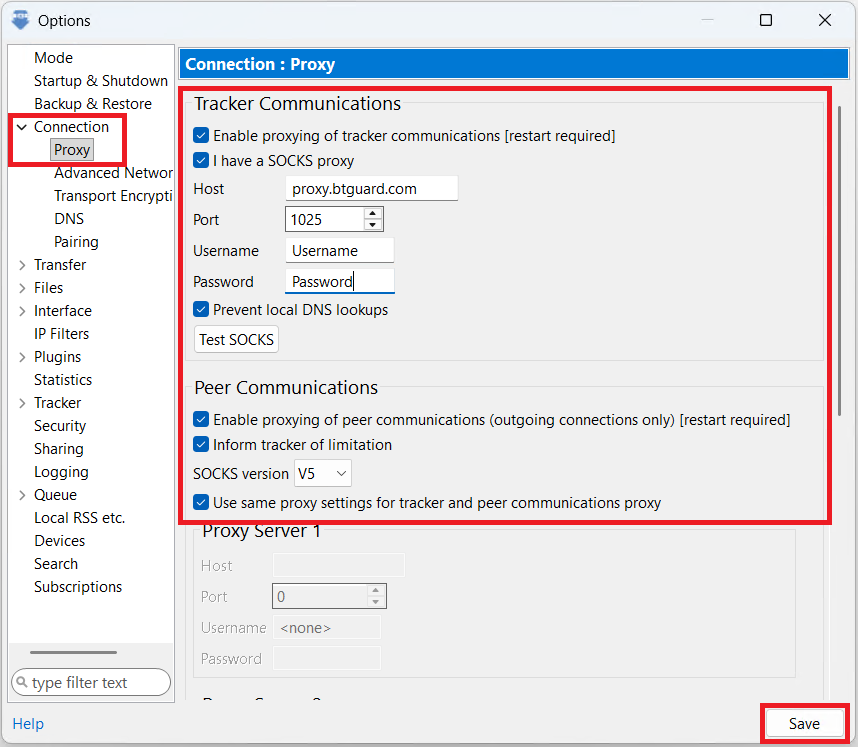
- 5. Select Proxy Options
- 6. Checkmark Enable proxying of tracker communications
- 7. Checkmark I have a SOCKS proxy
-
8. Enter the following information:
Host: proxy.btguard.com
You can also try with eu.btguard.com or fix.btguard.com or ca.btguard.com
Port: 1025
You can also try with port 80
Username: YourUsername
Password: YourPassword
Both username and password are case sensitive. Make sure not to add/forget Capital Letters. - 9. Checkmark Enable proxying of peer communications
- 10. Checkmark Inform tracker of limitation
- 11. Select Socks version V5
- 12. Checkmark Use same proxy settings for tracker and peer communications proxy
- 13. Uncheck Show non-local, non-SOCKS incoming connections as a error state