 BTGuard
OpenWRT – WireGuard Guide
Setup Instructions
- 1. Go to the Wireguard config generator
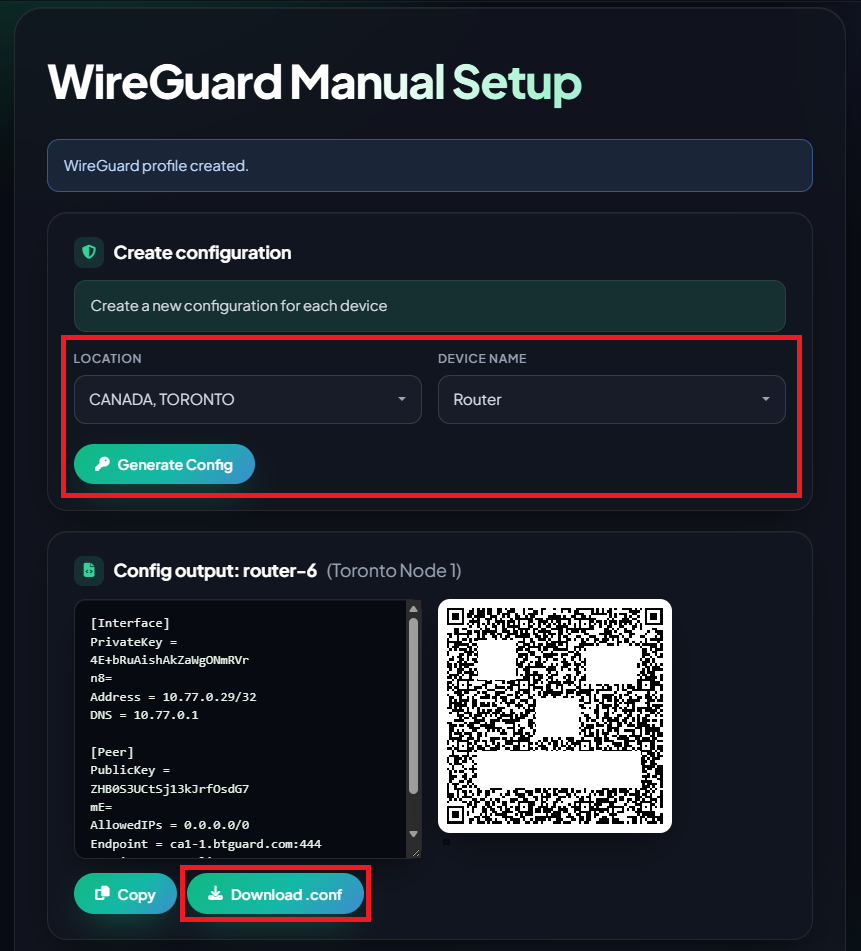
- 2. Select the Location you'd like to use and the Device Name
- 3. Click on Download .conf and save the file or hit Copy.

- 4. Login to your OpenWRT Admin Panel and go to Network then Interfaces.
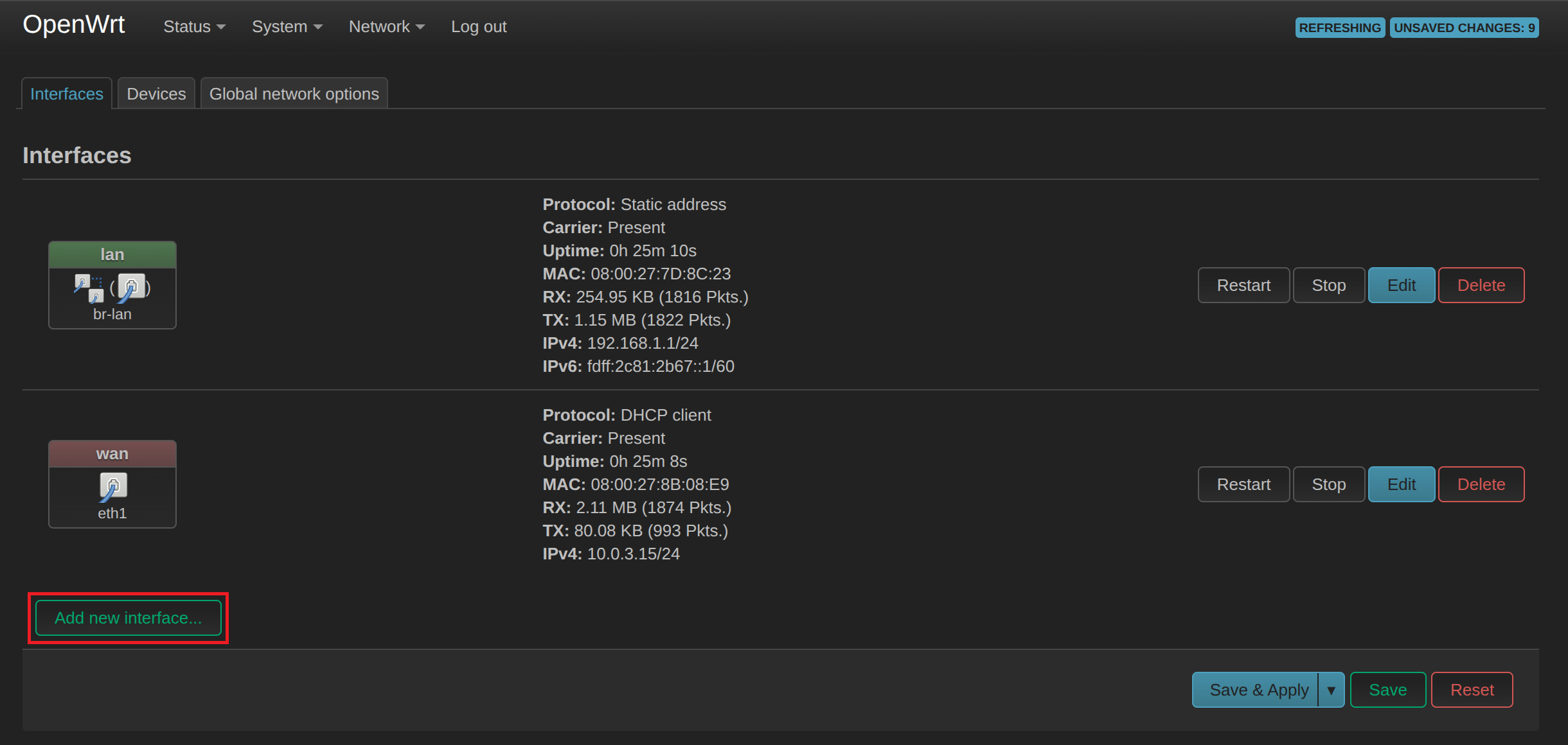
- 5. Click on Add new interface...
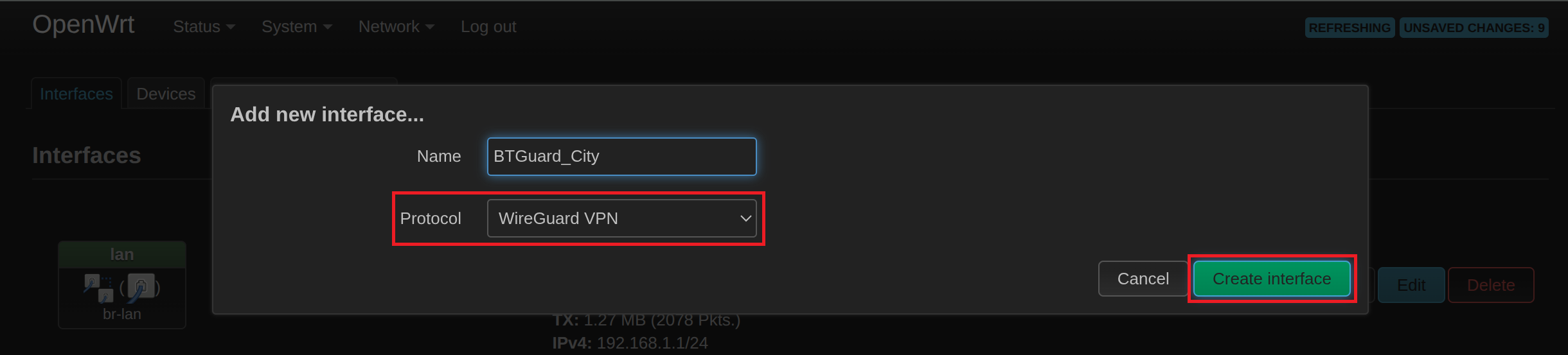
- 6. Select for Protocol: Wireguard VPN. You can name it whatever you want.
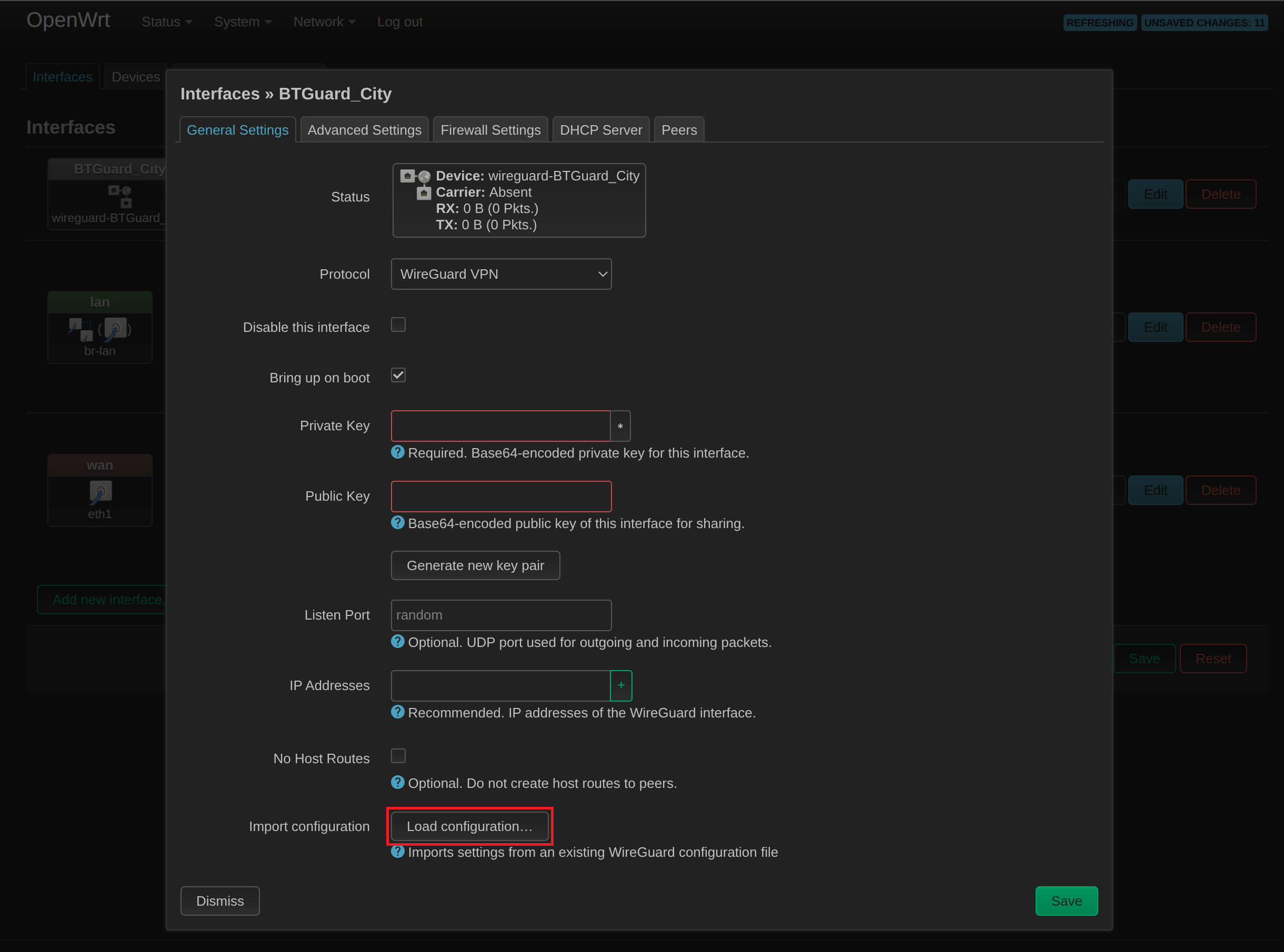
- 7. At the bottom, click on Load configuration...
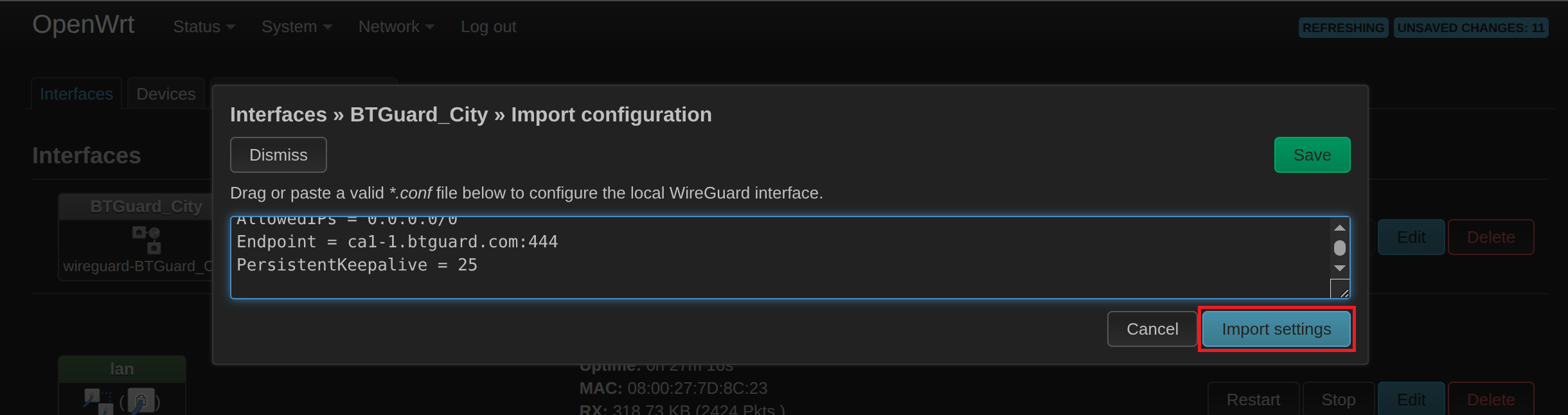
- 8. Paste what you copied earlier or locate the .conf file you just downloaded and load it in then hit Import settings.
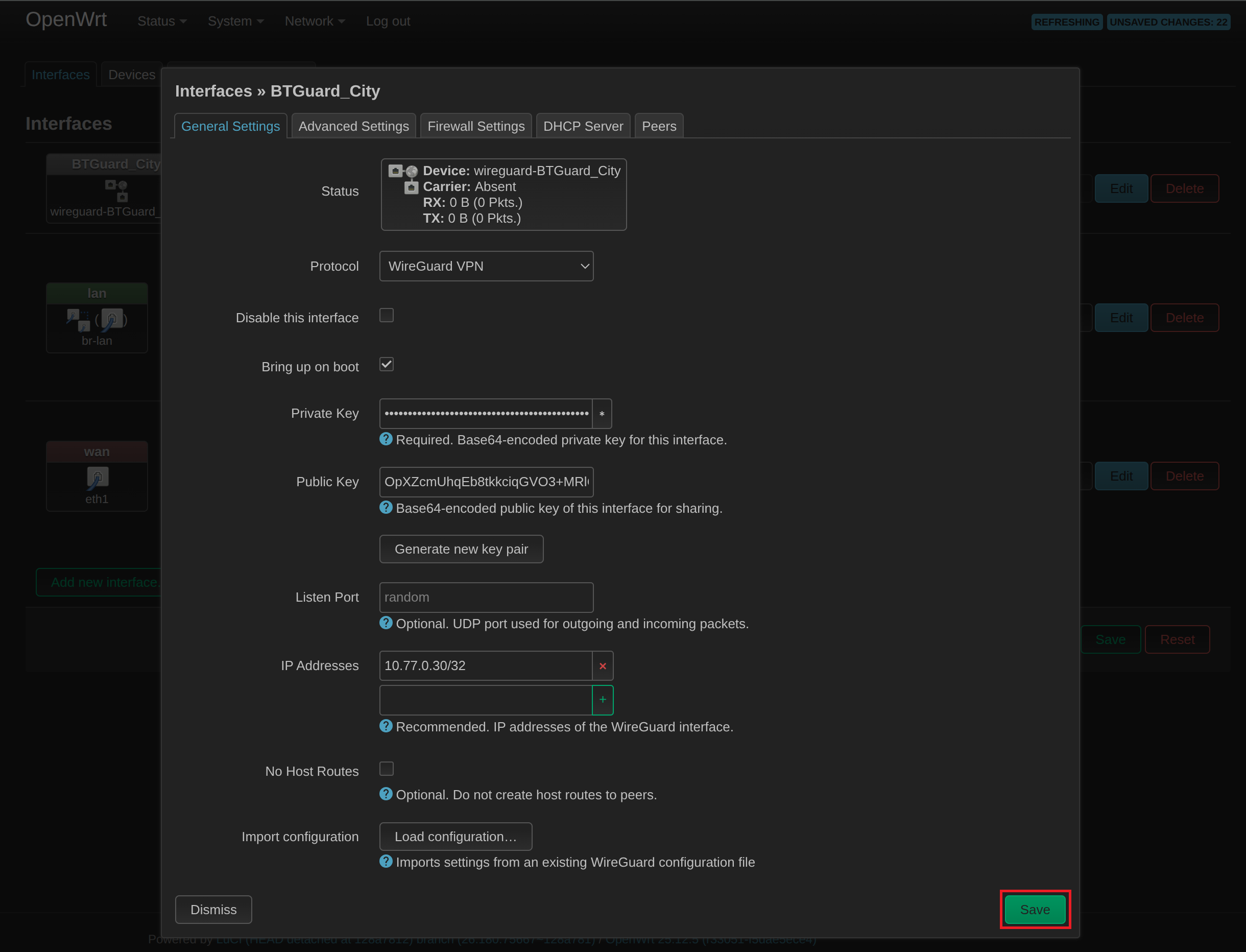
- 9. Hit Save.

- 10. Click on Interface has 6 pending changes.
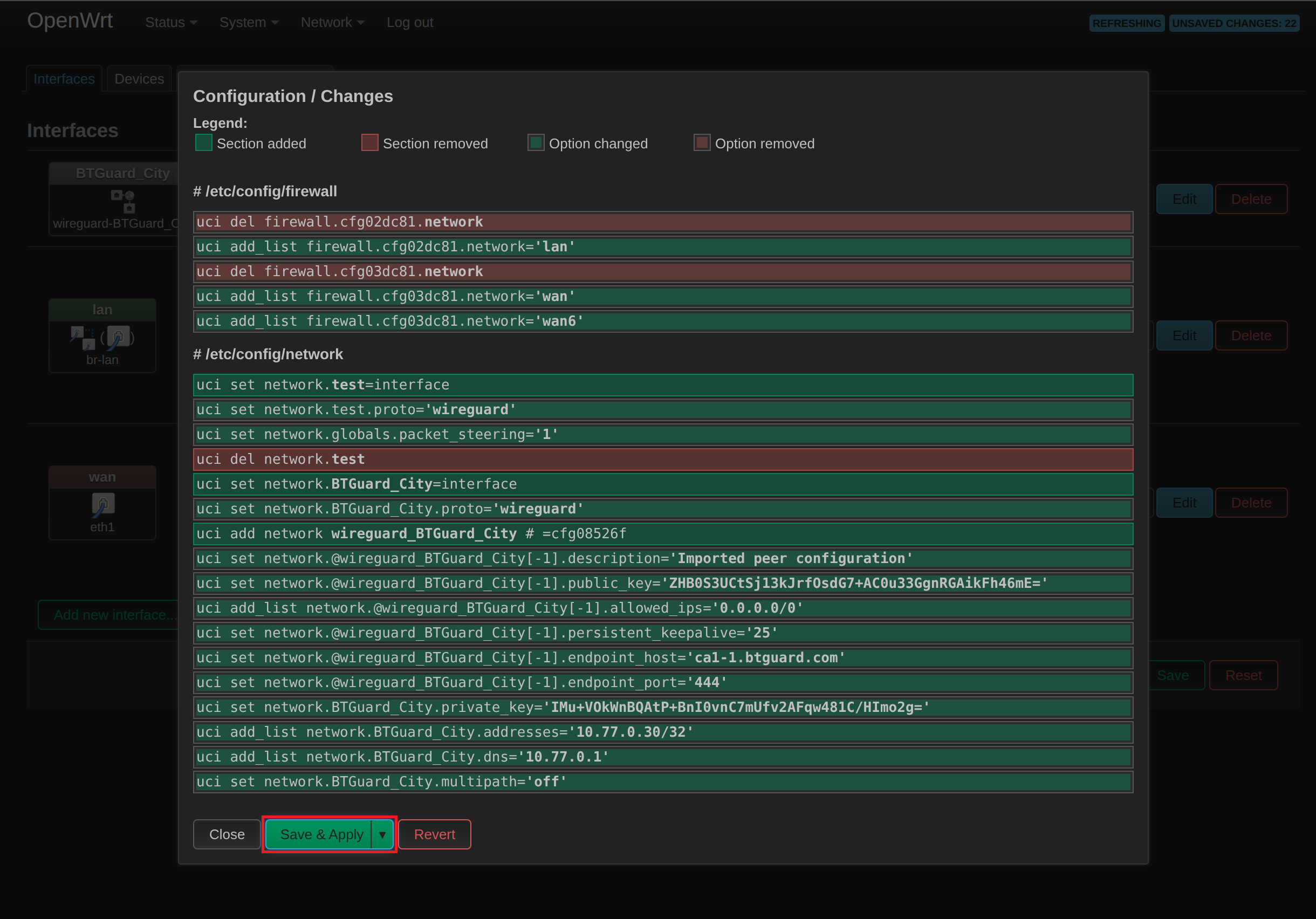
- 11. Click on Save & Apply.
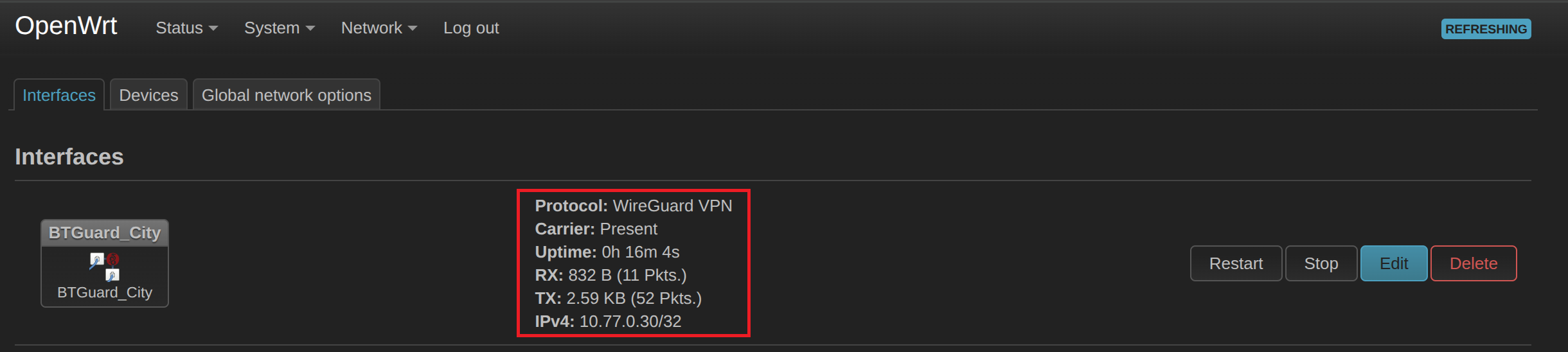
- 12. You are now Connected! You can check
To double check, in the new interface you just created and see if data is going through under.