BTGuard
OpenVPN VPN Setup on iOS
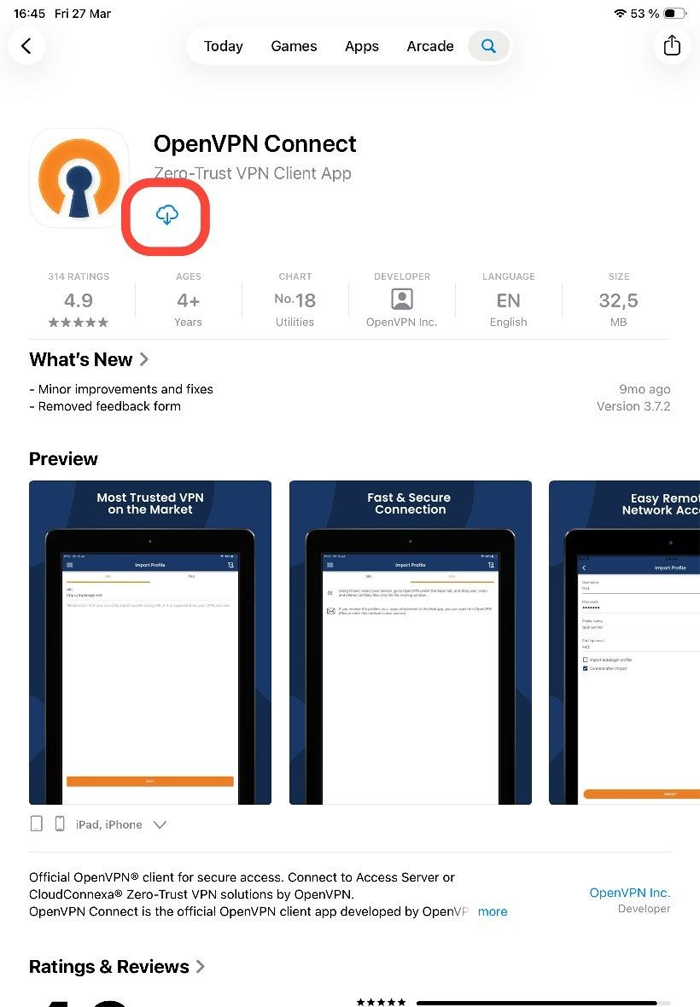
- 1. Go to the App Store search for OpenVPN Connect and Install it.


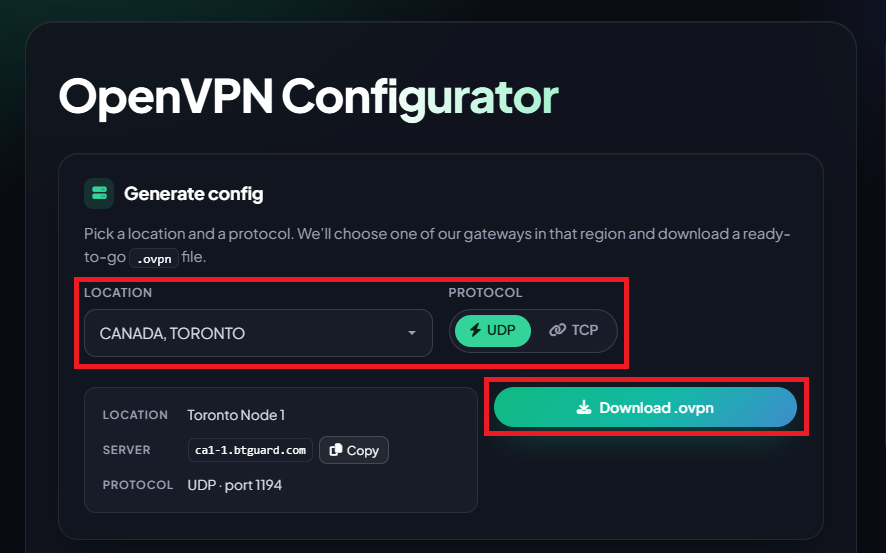
- 2. Go to the OpenVPN config generator

- 3. Select the Location and Protocol you'd like to use then Click on Download .ovpn and save the file.
(Only use TCP if you have a specific use case for it or if you're having issues with UDP) - 4. Open the Finder app, locate the file you just downloaded and open it to add it.
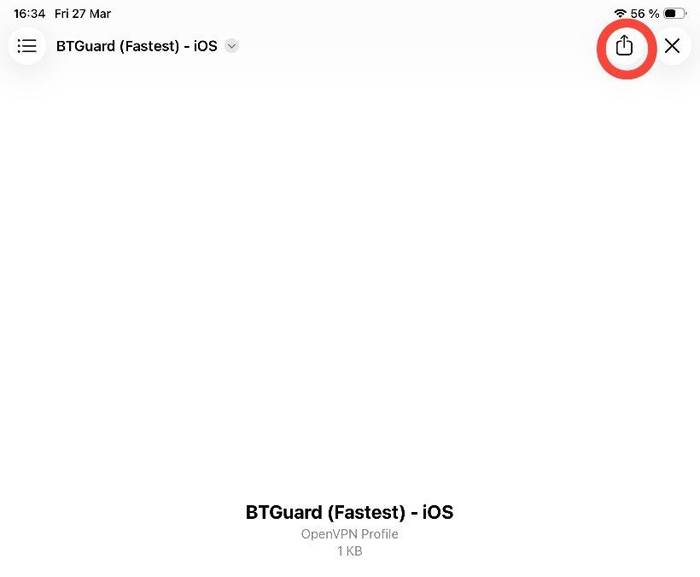
- 5. Tap the icon in the upper right corner.
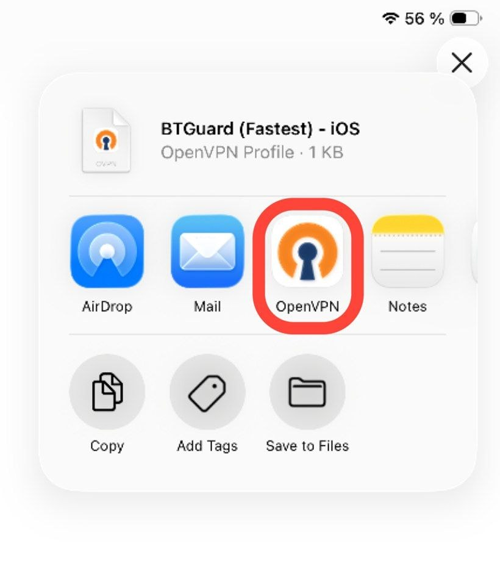
- 6. Tap on OpenVPN
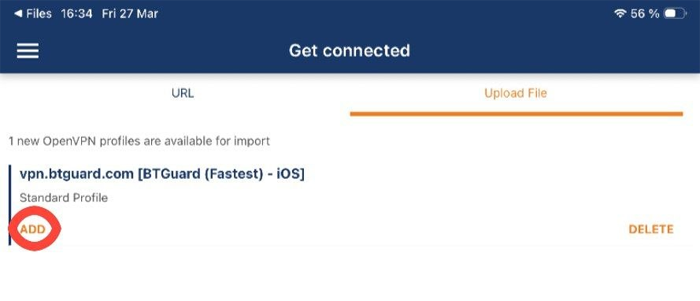 7. Tap on ADD
Repeat steps 2 to 7 for every location you'd like to add.
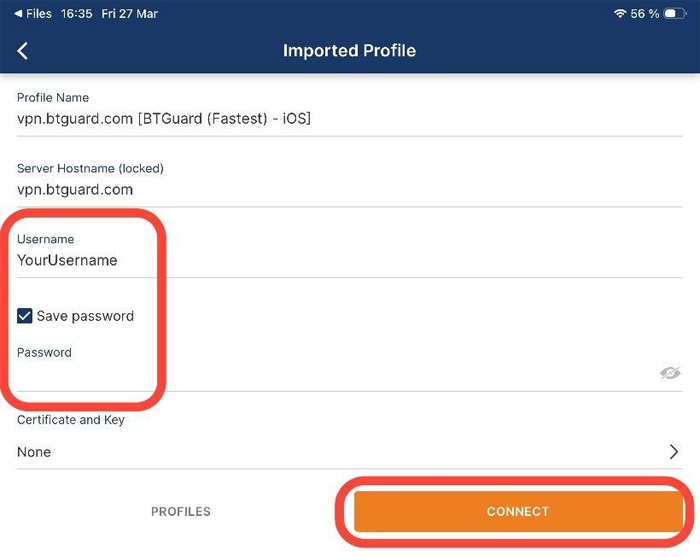
- 8. Tap CONNECT
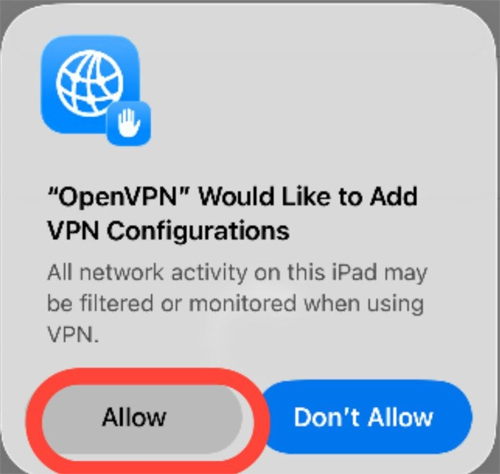
- 9. Tap Allow