 BTGuard
Microsoft Edge Proxy Extension Setup
Setup Instructions
- 1. Open the BTGuard Browser Protection page on Microsoft Edge Add-ons.
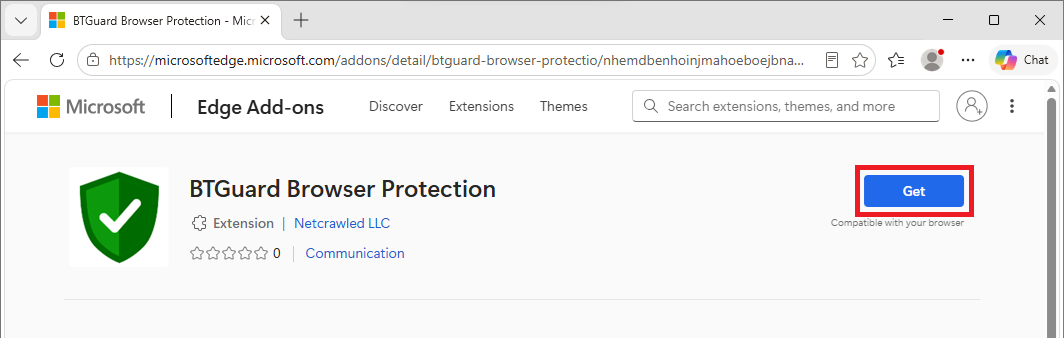
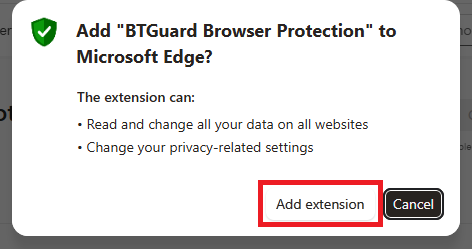
- 2. Click Get, then Add extension when Edge asks to confirm.
Why we need these permissions:
Read and change all your data on all websites: Our extension works by routing all traffic through our proxy. To do that, it must intercept every request the browser makes and redirect it to our proxy server, which requires access to every site. It is described as "read and change data on all websites," but BTGuard does neither: we don't inspect pages, store history, or alter what you see. We only tell the browser to send traffic through our proxy.
Change your privacy-related settings: Our entire purpose is to hide your real IP. If WebRTC is enabled, it can leak your real IP address even when traffic is proxied. While you're connected, we temporarily disable WebRTC via the privacy API to prevent that leak. That setting is removed as soon as you disconnect.
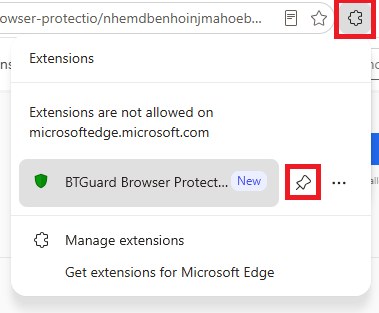
- 3. When the install finishes, a BTGuard shield icon appears next to the address bar.
Tip: click the Extensions (puzzle-piece) icon in the toolbar and hit the pin next to BTGuard to keep the shield icon visible.
Sign in
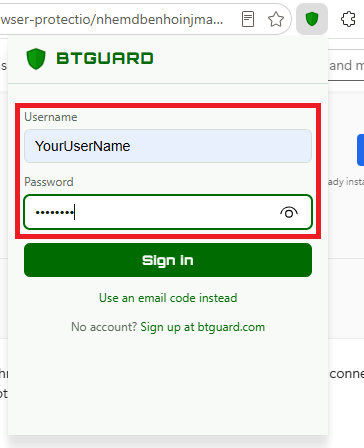
- 1. Click the BTGuard shield icon in the Edge toolbar to open the extension.
- 2. Enter your BTGuard Username and Password and hit Sign in.
Both are case sensitive. Make sure not to add or forget capital letters.
Connect
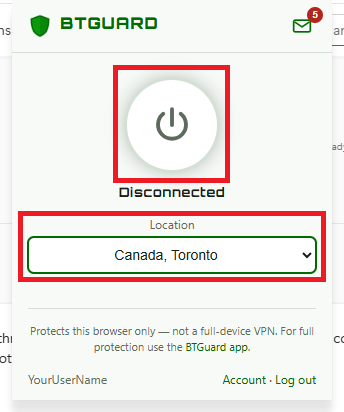
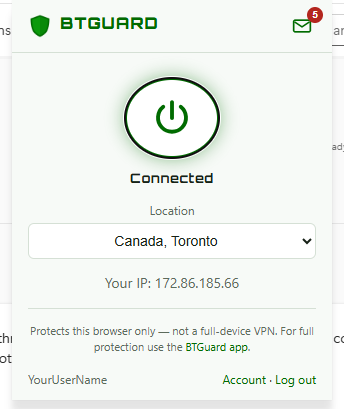
- 1. Pick an exit location from the list. Your browser traffic will leave the internet from that city.
- 2. Hit Connect. The shield turns green and the popup shows your new public IP.
Built-in private email
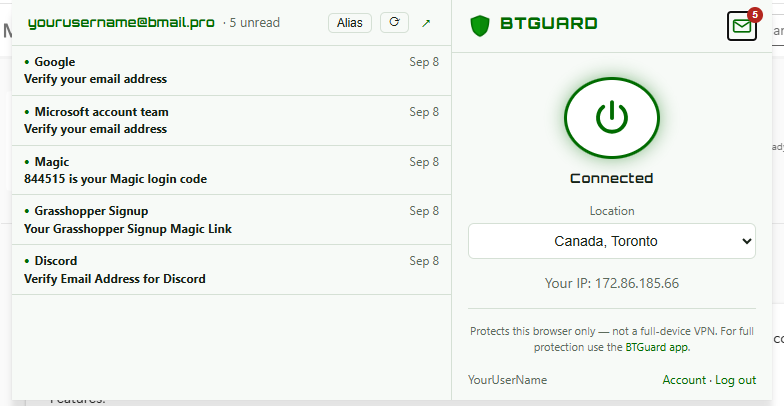
Every BTGuard account includes a free @bmail.pro inbox. Click the mail entry inside the extension to open your inbox in a new tab — no separate login needed.
Good to know
- Browser only. The extension protects traffic from Edge only. Torrent clients, games, and other apps are not covered — use the BTGuard VPN app for full-device protection, or the BitTorrent proxy for your torrent client.
- Works with any active plan. Both VPN and BitTorrent proxy subscriptions can use the extension.
- Per-device credentials. Each browser gets its own proxy credentials. Signing out revokes them for that browser, so nothing lingers on a shared computer.
- Check it worked. While connected, visit btguard.com — the location shown at the top should match the exit city you picked.
Troubleshooting
- "Invalid credentials" — usernames and passwords are case sensitive. Try the email code option if you're unsure of your password, or reset it here.
- "Account inactive" — the extension needs an active, paid BTGuard account. Check your status on the payment page.
- Pages won't load after connecting — another VPN or proxy extension may be fighting for control of the proxy settings. Disable it, then reconnect.
- Still stuck? Open a ticket at support and tell us which browser and version you're on.